Quick Reference Guide - Device Field Lock/Unlock System
Overview
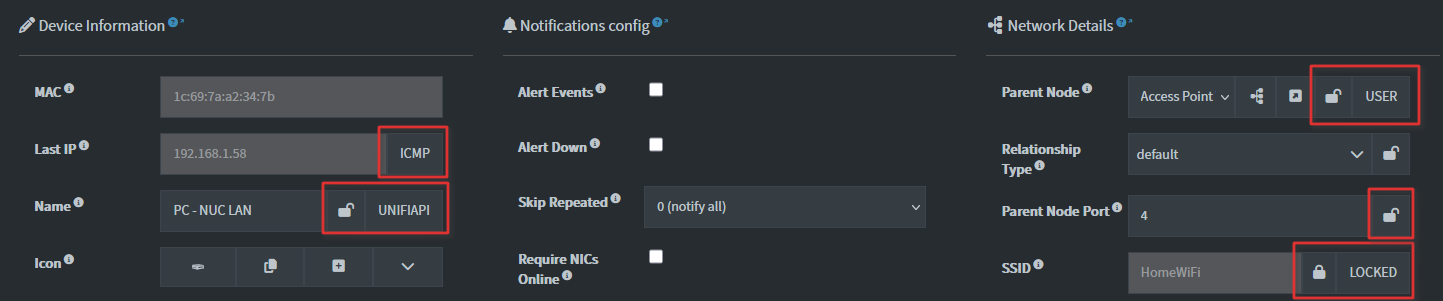
The device field lock/unlock system allows you to protect specific device fields from being automatically overwritten by scanning plugins. When you lock a field, NetAlertX remembers your choice and prevents plugins from changing that value until you unlock it.
Use case: You've manually corrected a device name or port number and want to keep it that way, even when plugins discover different values.
Tracked Fields
These are the ONLY fields that can be locked:
devName- Device hostname/aliasdevVendor- Device manufacturerdevSSID- WiFi network namedevParentMAC- Parent/gateway MACdevParentPort- Parent device portdevParentRelType- Relationship type (e.g., "gateway")devVlan- VLAN identifier
Additional fields that are tracked (and their source is dispalyed in the UI if available):
devMacdevLastIPdevFQDN
Source Values Explained
Each locked field has a "source" indicator that shows you why the value is protected:
| Indicator | Meaning | Can It Change? |
|---|---|---|
| 🔒 LOCKED | You locked this field | No, until you unlock it |
| ✏️ USER | You edited this field | No, plugins can't overwrite |
| 📡 NEWDEV | Default/unset value | Yes, plugins can update |
| 📡 Plugin name | Last updated by a plugin (e.g., UNIFIAPI) | Yes, plugins can update if field in SET_ALWAYS |
Overwrite rules are
Tip
You can bulk-unlock devices in the Multi-edit dialog. This removes all USER and LOCKED values from all *Source fields of selected devices.
Usage Examples
Lock a Field (Prevent Plugin Changes)
- Navigate to Device Details for the device
- Find the field you want to protect (e.g., device name)
- Click the lock button (🔒) next to the field
- The button changes to unlock (🔓)
- That field is now protected
Unlock a Field (Allow Plugin Updates)
- Go to Device Details
- Find the locked field (shows 🔓)
- Click the unlock button (🔓)
- The button changes back to lock (🔒)
- Plugins can now update that field again
Common Scenarios
Scenario 1: You've Named Your Device and Want to Keep the Name
- You manually edit device name to "Living Room Smart TV"
- A scanning plugin later discovers it as "Unknown Device" or "DEVICE-ABC123"
- Solution: Lock the device name field
- Your custom name is preserved even after future scans
Scenario 2: You Lock a Field, But It Still Changes
This means the field source is USER or LOCKED (protected). Check: - Is it showing the lock icon? (If yes, it's protected) - Wait a moment—sometimes changes take a few seconds to display - Try refreshing the page
Scenario 3: You Want to Let Plugins Update Again
- Find the device with locked fields
- Click the unlock button (🔓) next to each field
- Refresh the page
- Next time a plugin runs, it can update that field
What Happens When You Lock a Field
- ✅ Your custom value is kept
- ✅ Future plugin scans won't overwrite it
- ✅ You can still manually edit it anytime after unlocking
- ✅ Lock persists across plugin runs
- ✅ Other users can see it's locked
What Happens When You Unlock a Field
- ✅ Plugins can update it again on next scan
- ✅ If a plugin has a new value, it will be applied
- ✅ You can lock it again anytime
- ✅ Your manual edits are still saved in the database
Error Messages & Solutions
| Message | What It Means | What to Do |
|---|---|---|
| "Field cannot be locked" | You tried to lock a field that doesn't support locking | Only lock the fields listed above |
| "Device not found" | The device MAC address doesn't exist | Verify the device hasn't been deleted |
| Lock button doesn't work | Network or permission issue | Refresh the page and try again |
| Unexpected field changed | Field might have been unlocked | Check if field shows unlock icon (🔓) |
Quick Tips
- Lock names you manually corrected to keep them stable
- Leave discovery fields (vendor, FQDN) unlocked for automatic updates
- Use locks sparingly—they prevent automatic data enrichment
- Check the source indicator (colored badge) to understand field origin
- Lock buttons only appear for devices that are saved (not for new devices being created)
When to Lock vs. When NOT to Lock
✅ Good reasons to lock:
- You've customized the device name and it's correct
- You've set a static IP and it shouldn't change
- You've configured VLAN information
- You know the parent device and don't want it auto-corrected
❌ Bad reasons to lock:
- The value seems wrong—edit it first, then lock
- You want to prevent data from another source—use field lock, not to hide problems
- You're trying to force a value the system disagrees with
Troubleshooting
Lock button not appearing:
- Confirm the field is one of the tracked fields (see list above)
- Confirm the device is already saved (new devices don't show lock buttons)
- Refresh the page
Lock button is there but click doesn't work:
- Check your internet connection
- Check you have permission to edit devices
- Look at browser console (F12 > Console tab) for error messages
- Try again in a few seconds
Field still changes after locking:
- Double-check the lock icon shows
- Reload the page—the change might be a display issue
- Check if you accidentally unlocked it
- Open an issue if it persists