Device views filtering
Device List & Display Configuration
The Devices page is your primary view into what NetAlertX is monitoring. If devices are missing, unexpected devices appear, or the list doesn’t look the way you expect, the issue is often related to filters, display settings, or device visibility configuration.
This guide focuses on adjusting your view and troubleshooting common display-related issues.
I Don’t See a Device I Expect in My Devices
If a device is missing from the My Devices list, work through these checks.
Check Active Filters
The most common cause is that a filter is hiding the device.
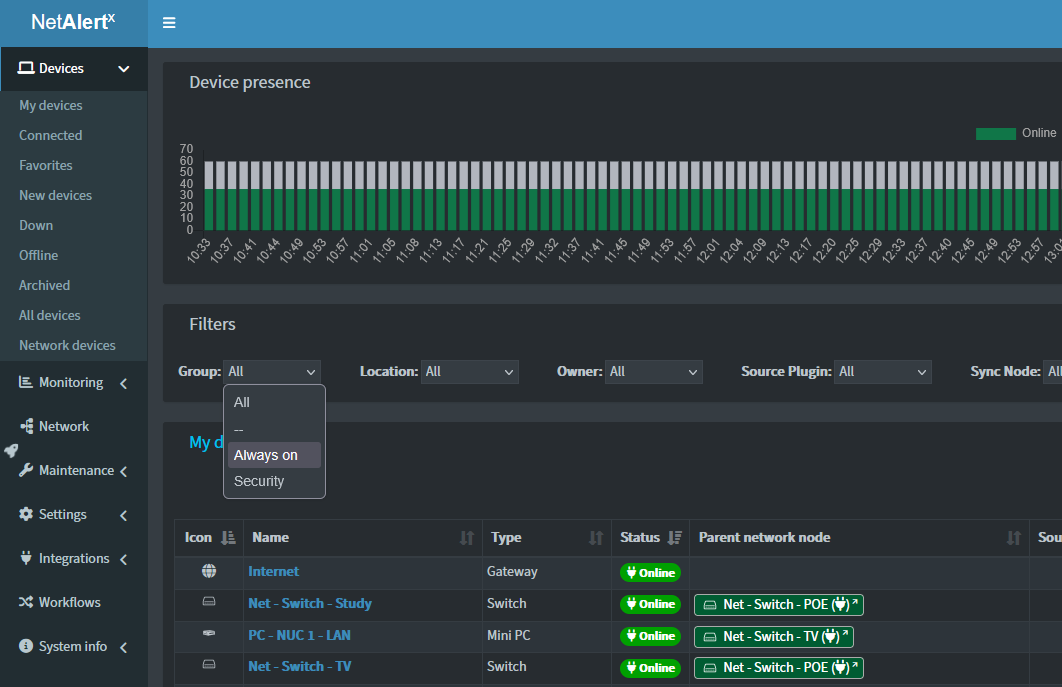
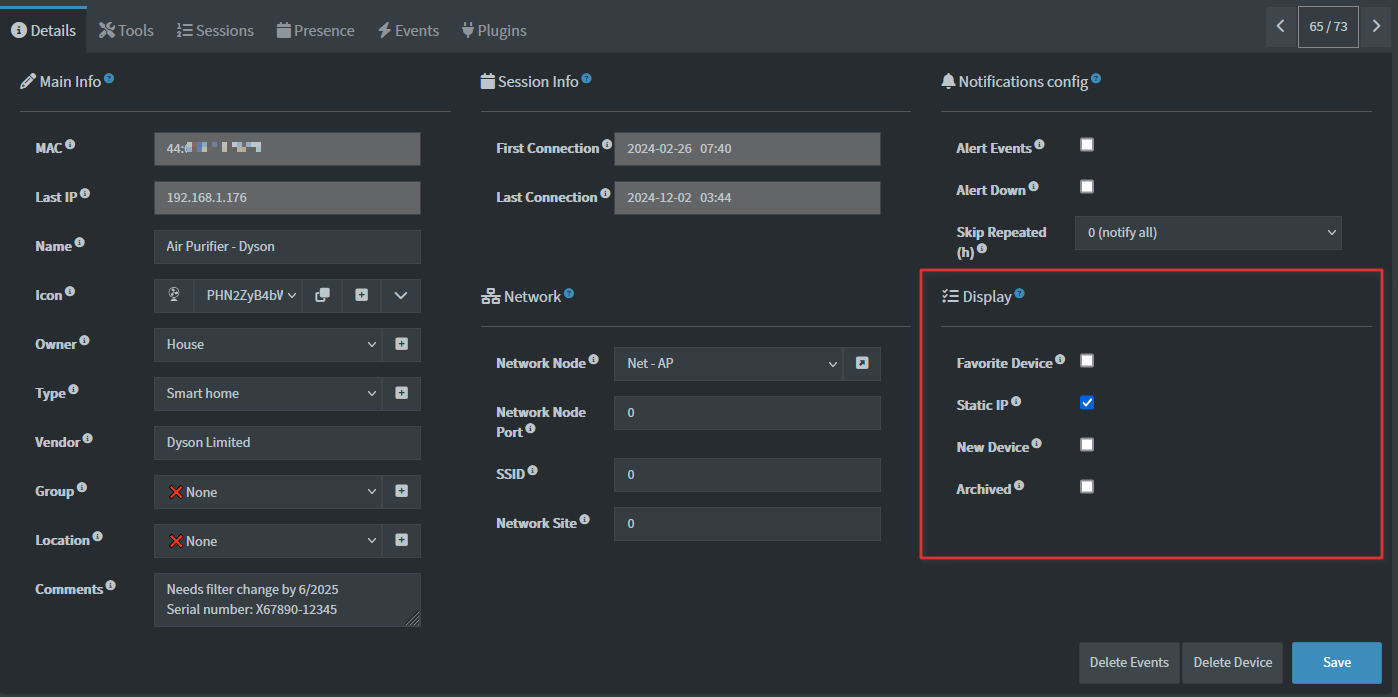
Review any active:
- Status filters (Online / Offline / Down / Archived)
- Location filters
- Owner / User filters
- Device Type filters
- Search terms entered in the search box
Clear filters first, then reload the page and check again.
Check global filters
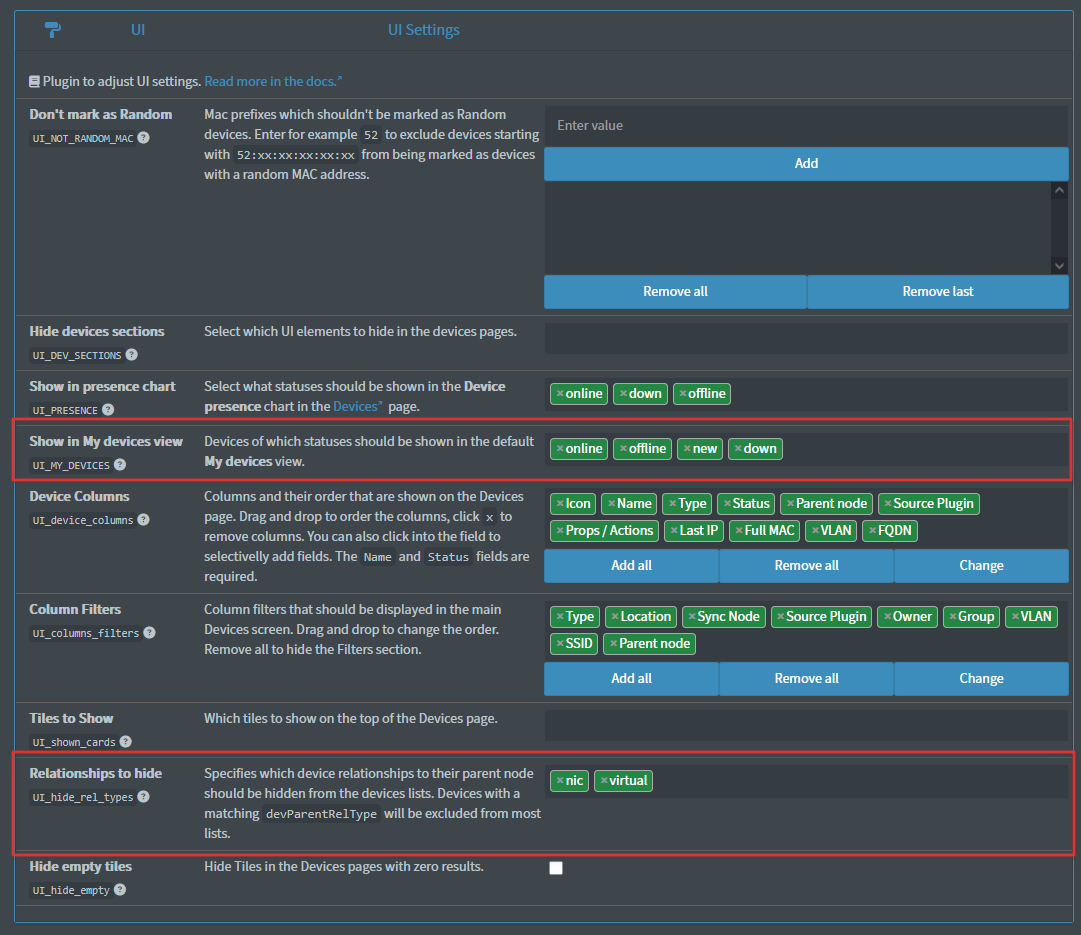
You can select devices of what statuses should be displayed in the My Devices view. This can be adjusted in the Settings section - search for the UI_MY_DEVICES setting and verify that the statuses you want to show are selected.
Check Whether the Device Is Hidden
Some devices may be excluded from normal views depending on configuration.
Examples include:
- Archived devices
- Devices marked as ignored (
NEWDEV_ignored_IPsandNEWDEV_ignored_MACssettings) - Virtual or relationship-only devices excluded from display (setting
UI_hide_rel_types) - Devices assigned to another user view or group
If the device exists in the database but is intentionally hidden, it may not appear in default lists.
Confirm the Device Has Been Detected
If the device has never been scanned or synced into NetAlertX yet, it won’t appear in the UI.
Things to check:
- Is the device currently online?
- Has the network scan already run?
- Is the correct scan source enabled?
- If using sync/import, has the sync node completed successfully?
You can also trigger a manual scan and refresh the UI afterward.
Refresh the UI Cache
Sometimes device data updates correctly in the backend but the browser view hasn’t refreshed yet.
Try:
- Clicking the Reload icon in the NetAlertX header
- Waiting for the next automatic refresh cycle
- Performing a hard browser refresh (
Ctrl+Shift+R/Cmd+Shift+R)
The built-in Reload action is recommended over browser refresh because it clears the application’s internal cache, otherwise cache refresh might take a couple of minutes.
Filtering Your Device View
Filters help narrow large device inventories into manageable views.
Common filtering options include:
| Filter | Use Case |
|---|---|
| Status | Show only Online, Offline, Down, New, or Archived devices |
| Location | View devices from a specific site or branch |
| Device Type | Show only servers, network gear, clients, IoT devices, etc. |
| Owner/User | Limit results to a specific user or device owner |
| Search | Find devices by hostname, IP address, MAC address, or label |
Filters can be combined, which is especially useful for large installations.
Example:
Status = Down + Location = Sydney Office
This shows only devices currently down at that site. Available filters can be configured via the UI_columns_filters setting.
Related Display Settings
Several UI settings affect what appears in the device list.
Hidden Connections / Virtual Devices
You can hide non-essential relationships or virtual connections from the main view to reduce clutter.
Useful when:
- imported relationships create visual noise
- virtual devices aren’t relevant to daily monitoring
- you want a cleaner operational view
See the UI_hide_rel_types setting for details.
Dashboard Block Visibility
If you’re using the dashboard alongside Devices, UI Settings allow you to disable blocks that aren’t useful for your workflow.
Common examples:
- Tiles
- Presence widgets
- Summary cards
- Relationship views
This can make the device list easier to focus on.
To configure the above check the UI_shown_cards, UI_DEV_SECTIONS and UI_hide_empty settings.
Auto Refresh
If devices appear stale or statuses don’t update immediately, check UI refresh settings (UI_REFRESH setting).
A refresh interval between 60–120 seconds is usually a good balance between responsiveness and browser performance.
Quick Troubleshooting Checklist
Before digging deeper, run through this list:
- Clear all active filters
- Search by hostname, MAC address, or IP
- Confirm the device is not archived or hidden
- Trigger or verify a recent network scan
- Use the NetAlertX Reload icon to refresh the UI cache
- Check related UI visibility settings
If the device still doesn’t appear after these checks, review the scan/import logs to confirm it has been discovered successfully by NetAlertX.