Plugin Development Guide
This comprehensive guide covers how to build plugins for NetAlertX.
Tip
New to plugin development? Start with the Quick Start Guide to get a working plugin in 5 minutes.
NetAlertX comes with a plugin system to feed events from third-party scripts into the UI and then send notifications, if desired. The highlighted core functionality this plugin system supports:
- Dynamic UI generation - Automatically create tables for discovered objects
- Data filtering - Filter and link values in the Devices UI
- User settings - Surface plugin configuration in the Settings UI
- Rich display types - Color-coded badges, links, formatted text, and more
- Database integration - Import plugin data into NetAlertX tables like
CurrentScanorDevices
Note
For a high-level overview of how the config.json is used and its lifecycle, see the config.json Lifecycle Guide.
Quick Links
🚀 Getting Started
- Quick Start Guide - Create a working plugin in 5 minutes
- Development Environment Setup - Set up your local development environment
📚 Core Concepts
- Data Contract - The exact output format plugins must follow (9-13 columns, pipe-delimited)
- Data Sources - How plugins retrieve data (scripts, databases, templates)
- Plugin Settings System - Let users configure your plugin via the UI
- UI Components - Display plugin results with color coding, links, and more
🏗️ Architecture
- Plugin Config Lifecycle - How
config.jsonis loaded and used - Full Plugin Development Reference - Comprehensive details on all aspects
🐛 Troubleshooting
- Debugging Plugins - Troubleshoot plugin issues
- Plugin Examples - Study existing plugins as reference implementations
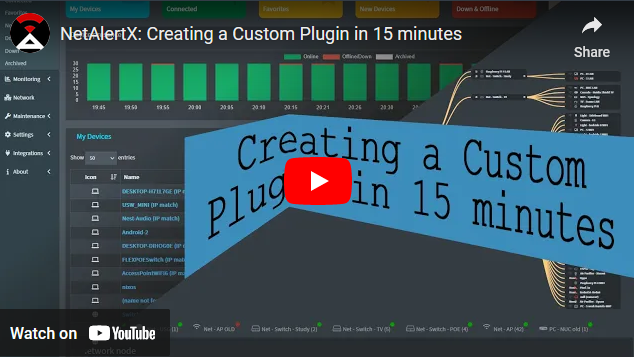
🎥 Video Tutorial
📸 Screenshots
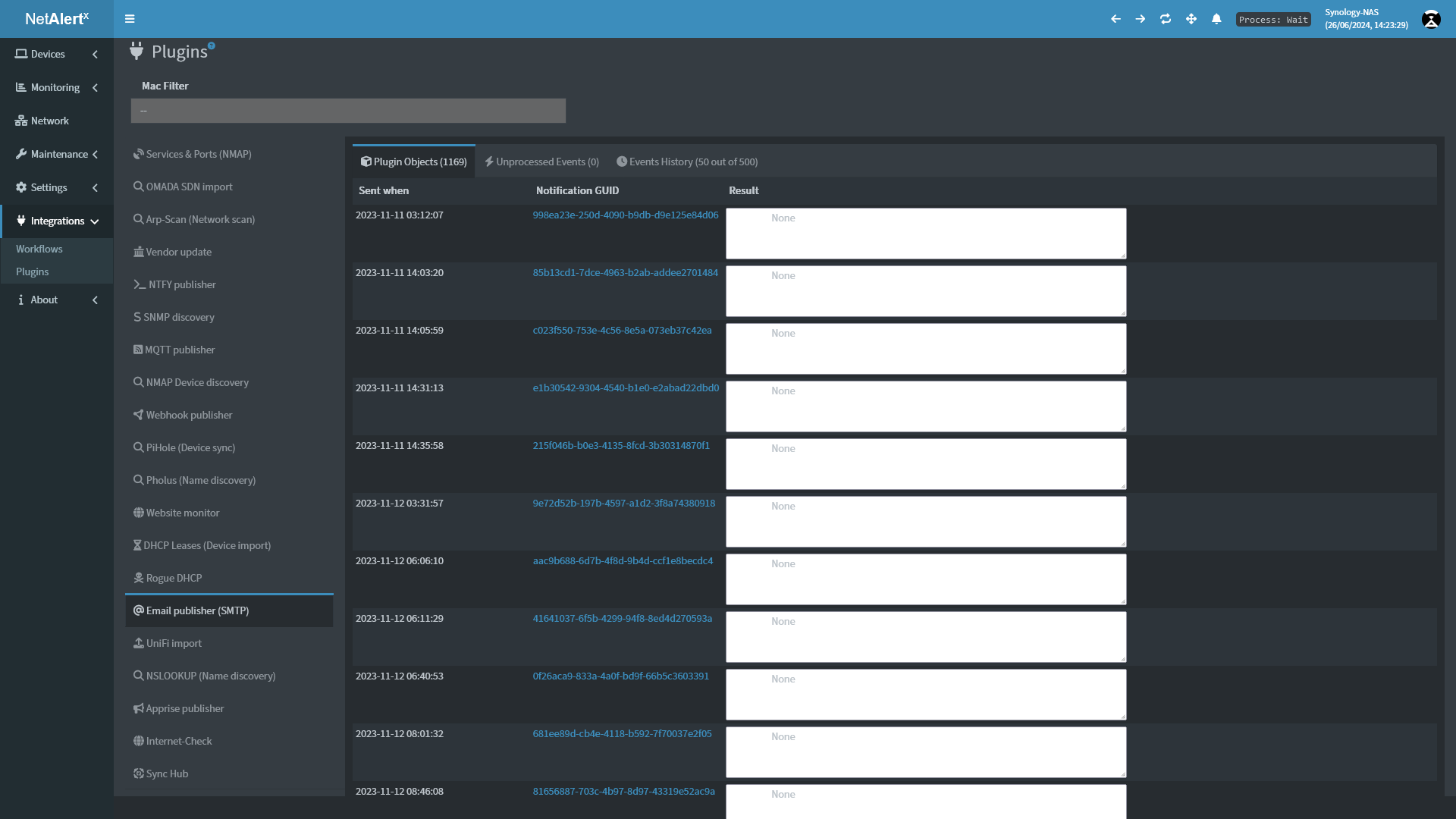 |
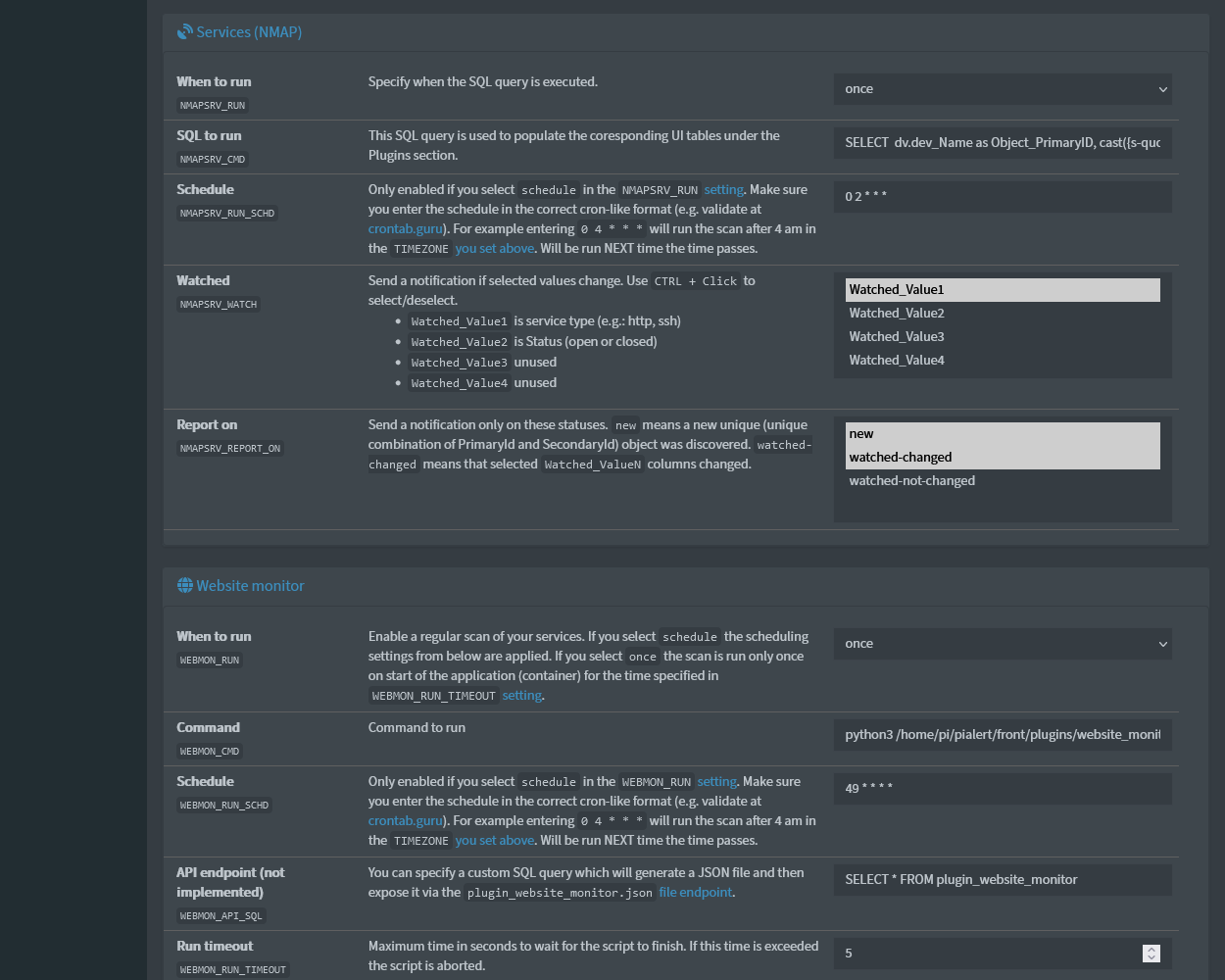 |
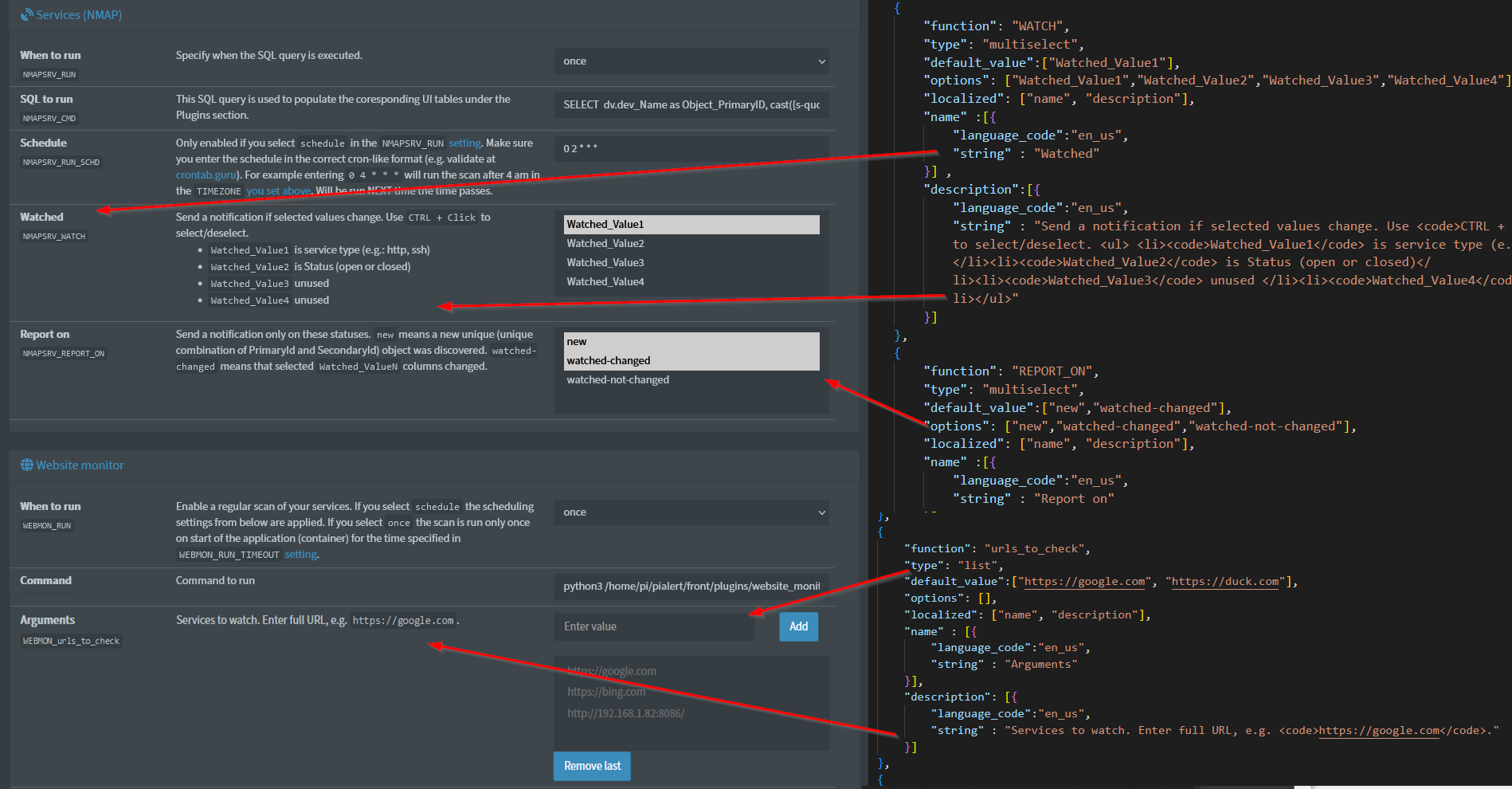 |
|---|---|---|
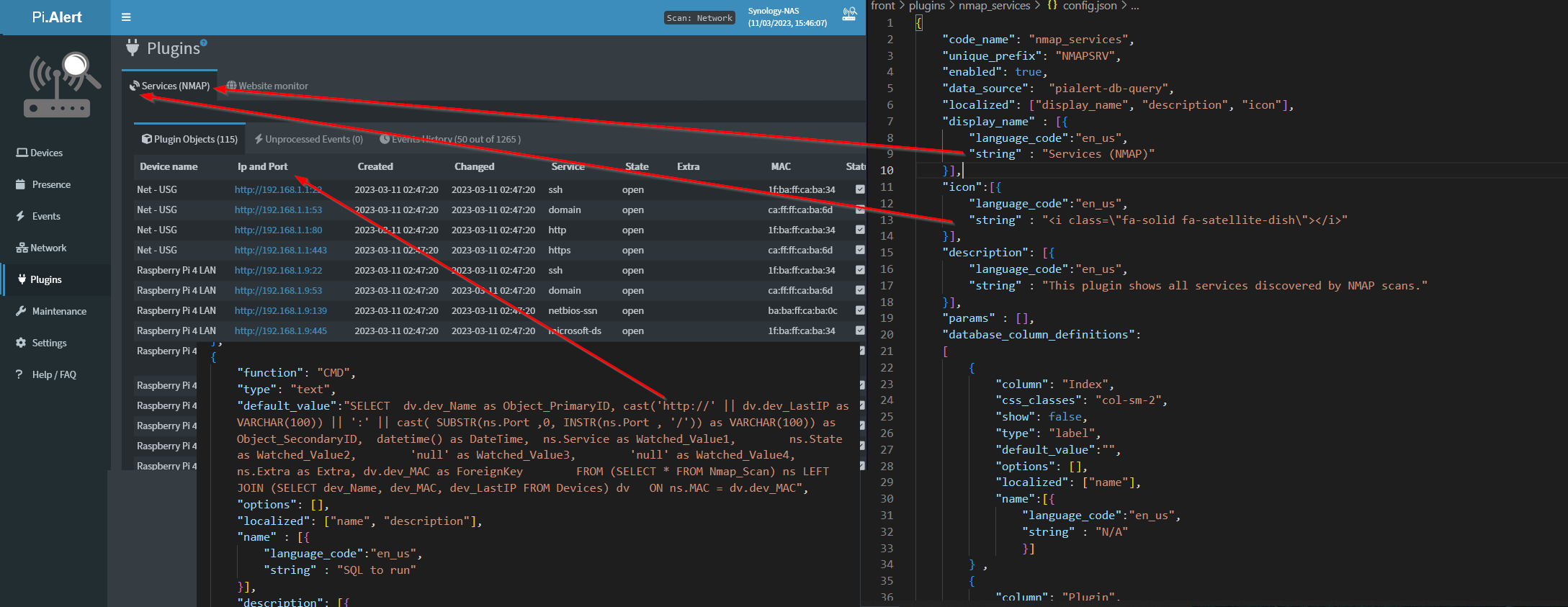 |
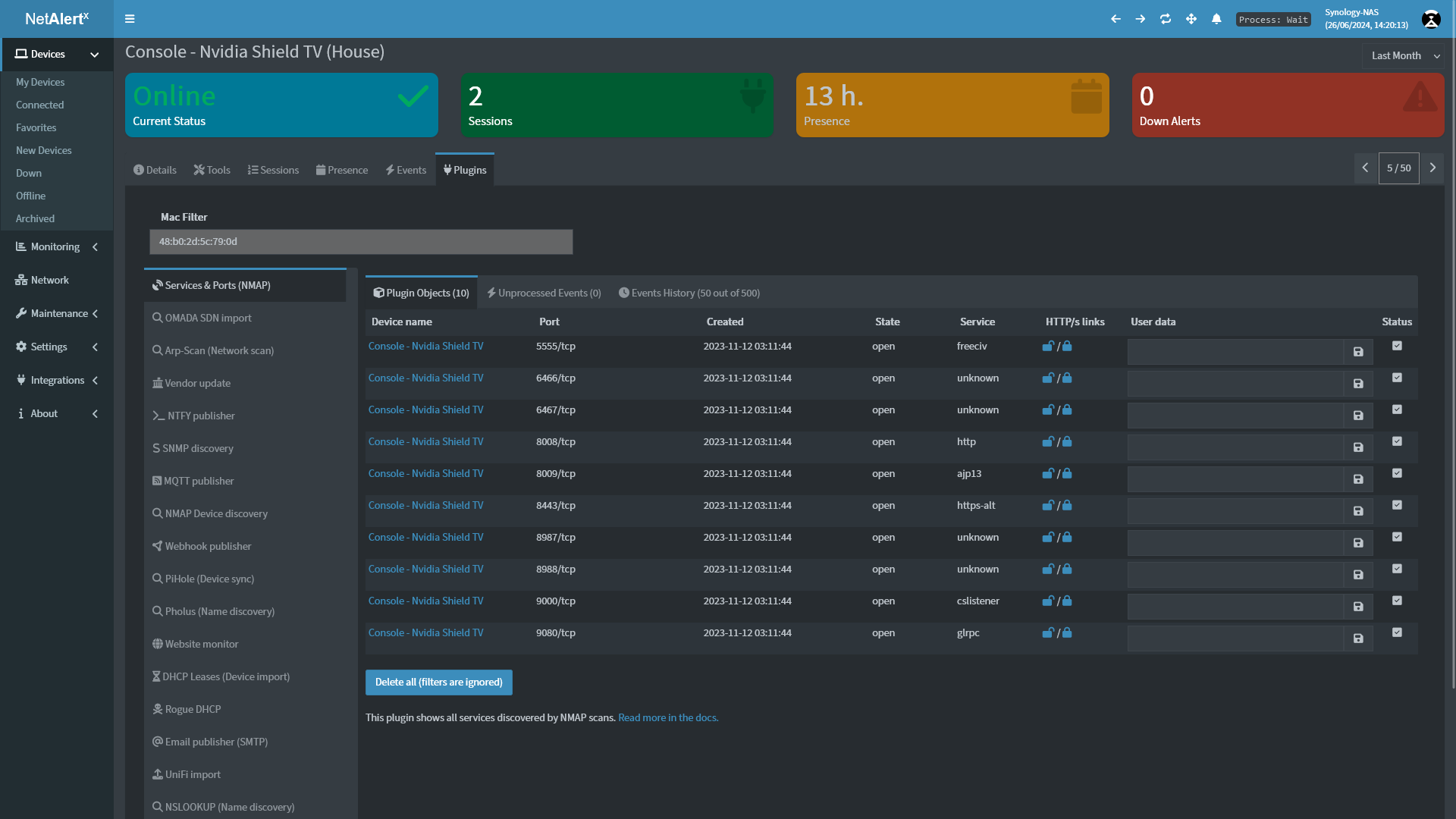 |
Use Cases
Plugins are infinitely flexible. Here are some examples:
- Device Discovery - Scan networks using ARP, mDNS, DHCP leases, or custom protocols
- Service Monitoring - Monitor web services, APIs, or network services for availability
- Integration - Import devices from PiHole, Home Assistant, Unifi, or other systems
- Enrichment - Add data like geolocation, threat intelligence, or asset metadata
- Alerting - Send notifications to Slack, Discord, Telegram, email, or webhooks
- Reporting - Generate insights from existing NetAlertX database (open ports, recent changes, etc.)
- Custom Logic - Create fake devices, trigger automations, or implement custom heuristics
If you can imagine it and script it, you can build a plugin.
Limitations & Notes
- Plugin data is deduplicated hourly (same Primary ID + Secondary ID + User Data = duplicate removed)
- Currently, only
CurrentScantable supports update/overwrite of existing objects - Plugin results must follow the strict Data Contract
- Plugins run with the same permissions as the NetAlertX process
- External dependencies must be installed in the container
Plugin Development Workflow
Step 1: Understand the Basics
- Read Quick Start Guide - 5 minute overview
- Study the Data Contract - Understand the output format
- Choose a Data Source - Where does your data come from?
Step 2: Create Your Plugin
- Copy the
__templateplugin folder (see below for structure) - Update
config.jsonwith your plugin metadata - Implement
script.py(or configure alternative data source) - Test locally in the devcontainer
Step 3: Configure & Display
- Define Settings for user configuration
- Design UI Components for result display
- Map to database tables if needed (for notifications, etc.)
Step 4: Deploy & Test
- Restart the backend
- Test via Settings → Plugin Settings
- Verify results in UI and logs
- Check
/tmp/log/plugins/last_result.<PREFIX>.log
See Quick Start Guide for detailed step-by-step instructions.
Plugin File Structure
Every plugin lives in its own folder under /app/front/plugins/.
Important: Folder name must match the
"code_name"value inconfig.json
/app/front/plugins/
├── __template/          # Copy this as a starting point
│   ├── config.json      # Plugin manifest (configuration)
│   ├── script.py        # Your plugin logic (optional, depends on data_source)
│   └── README.md        # Setup and usage documentation
├── my_plugin/           # Your new plugin
│   ├── config.json      # REQUIRED - Plugin manifest
│   ├── script.py        # OPTIONAL - Python script (if using script data source)
│   ├── README.md        # REQUIRED - Documentation for users
│   └── other_files...   # Your supporting files
Plugin Manifest (config.json)
The config.json file is the plugin manifest - it tells NetAlertX everything about your plugin:
- Metadata: Plugin name, description, icon
- Execution: When to run, what command to run, timeout
- Settings: User-configurable options
- Data contract: Column definitions and how to display results
- Integration: Database mappings, notifications, filters
Example minimal config.json:
{
  "code_name": "my_plugin",
  "unique_prefix": "MYPLN",
  "display_name": [{"language_code": "en_us", "string": "My Plugin"}],
  "description": [{"language_code": "en_us", "string": "My awesome plugin"}],
  "icon": "fa-plug",
  "data_source": "script",
  "execution_order": "Layer_0",
  "settings": [
    {
      "function": "RUN",
      "type": {"dataType": "string", "elements": [{"elementType": "select", "elementOptions": [], "transformers": []}]},
      "default_value": "disabled",
      "options": ["disabled", "once", "schedule"],
      "localized": ["name"],
      "name": [{"language_code": "en_us", "string": "When to run"}]
    },
    {
      "function": "CMD",
      "type": {"dataType": "string", "elements": [{"elementType": "input", "elementOptions": [], "transformers": []}]},
      "default_value": "python3 /app/front/plugins/my_plugin/script.py",
      "localized": ["name"],
      "name": [{"language_code": "en_us", "string": "Command"}]
    }
  ],
  "database_column_definitions": []
}
For comprehensive
config.jsondocumentation, see PLUGINS_DEV_CONFIG.md
Full Reference (Below)
The sections below provide complete reference documentation for all plugin development topics. Use the quick links above to jump to specific sections, or read sequentially for a deep dive.
More on specifics below.
Data Contract & Output Format
For detailed information on plugin output format, see PLUGINS_DEV_DATA_CONTRACT.md.
Quick reference:
- Format: Pipe-delimited (|) text file
- Location: /tmp/log/plugins/last_result.<PREFIX>.log
- Columns: 9 required + 4 optional = 13 maximum
- Helper: Use plugin_helper.py for easy formatting
The 9 Mandatory Columns
| Column | Name | Required | Example |
|---|---|---|---|
| 0 | objectPrimaryId | YES | "device_name" or "192.168.1.1" |
| 1 | objectSecondaryId | no | "secondary_id" or null |
| 2 | DateTime | YES | "2023-01-02 15:56:30" |
| 3 | watchedValue1 | YES | "online" or "200" |
| 4 | watchedValue2 | no | "ip_address" or null |
| 5 | watchedValue3 | no | null |
| 6 | watchedValue4 | no | null |
| 7 | Extra | no | "additional data" or null |
| 8 | ForeignKey | no | "aa:bb:cc:dd:ee:ff" or null |
See Data Contract for examples, validation, and debugging tips.
Config.json: Settings & Configuration
For detailed settings documentation, see PLUGINS_DEV_SETTINGS.md and PLUGINS_DEV_DATASOURCES.md.
Setting Object Structure
Every setting in your plugin has this structure:
{
  "function": "UNIQUE_CODE",
  "type": {"dataType": "string", "elements": [...]},
  "default_value": "...",
  "options": [...],
  "localized": ["name", "description"],
  "name": [{"language_code": "en_us", "string": "Display Name"}],
  "description": [{"language_code": "en_us", "string": "Help text"}]
}
Reserved Function Names
These control core plugin behavior:
| Function | Purpose | Required | Options |
|---|---|---|---|
RUN |
When to execute | YES | disabled, once, schedule, always_after_scan, before_name_updates, on_new_device |
RUN_SCHD |
Cron schedule | If RUN=schedule |
Cron format: "0 * * * *" |
CMD |
Command to run | YES | Shell command or script path |
RUN_TIMEOUT |
Max execution time | optional | Seconds: "60" |
WATCH |
Monitor for changes | optional | Column names |
REPORT_ON |
When to notify | optional | new, watched-changed, watched-not-changed, missing-in-last-scan |
DB_PATH |
External DB path | If using SQLite | /path/to/db.db |
See PLUGINS_DEV_SETTINGS.md for full component types and examples.
Filters & Data Display
For comprehensive display configuration, see PLUGINS_DEV_UI_COMPONENTS.md.
Filters
Control which rows display in the UI:
{
  "data_filters": [
    {
      "compare_column": "objectPrimaryId",
      "compare_operator": "==",
      "compare_field_id": "txtMacFilter",
      "compare_js_template": "'{value}'.toString()",
      "compare_use_quotes": true
    }
  ]
}
See UI Components: Filters for full documentation.
Database Mapping
To import plugin data into NetAlertX tables for device discovery or notifications:
{
  "mapped_to_table": "CurrentScan",
  "database_column_definitions": [
    {
      "column": "objectPrimaryId",
      "mapped_to_column": "scanMac",
      "show": true,
      "type": "device_mac",
      "localized": ["name"],
      "name": [{"language_code": "en_us", "string": "MAC Address"}]
    }
  ]
}
See UI Components: Database Mapping for full documentation.
Static Value Mapping
To always map a static value (not read from plugin output):
{
  "column": "NameDoesntMatter",
  "mapped_to_column": "scanSourcePlugin",
  "mapped_to_column_data": {
    "value": "MYPLN"
  }
}
UI Component Types
Plugin results are displayed in the web interface using various component types. See PLUGINS_DEV_UI_COMPONENTS.md for complete documentation.
Common Display Types
See PLUGINS_DEV_SETTINGS.md for complete settings documentation, and PLUGINS_DEV_DATASOURCES.md for data source details.
Quick Reference: Key Concepts
Plugin Output Format
objectPrimaryId|objectSecondaryId|DateTime|watchedValue1|watchedValue2|watchedValue3|watchedValue4|Extra|ForeignKey
See: Data Contract
Plugin Metadata (config.json)
{
  "code_name": "my_plugin",           // Folder name
  "unique_prefix": "MYPLN",           // Settings prefix
  "display_name": [...],              // UI label
  "data_source": "script",            // Where data comes from
  "settings": [...],                  // User configurable
  "database_column_definitions": [...] // How to display
}
See: Full Guide, Settings
Reserved Settings
RUN- When to execute (disabled, once, schedule, always_after_scan, etc.)RUN_SCHD- Cron scheduleCMD- Command/script to executeRUN_TIMEOUT- Max execution timeWATCH- Monitor for changesREPORT_ON- Notification trigger
See: Settings System
Display Types
label, device_mac, device_ip, url, threshold, replace, regex, textbox_save, and more.
See: UI Components
Tools & References
- Template Plugin:
/app/front/plugins/__template/- Start here! - Helper Library:
/app/front/plugins/plugin_helper.py- Use for output formatting - Settings Helper:
/app/server/helper.py- Useget_setting_value()in scripts - Example Plugins:
/app/front/plugins/*/- Study working implementations - Logs:
/tmp/log/plugins/- Plugin output and execution logs - Backend Logs:
/tmp/log/app.log- Core system logs